For Denon & Marantz

The control your receiver always deserved.

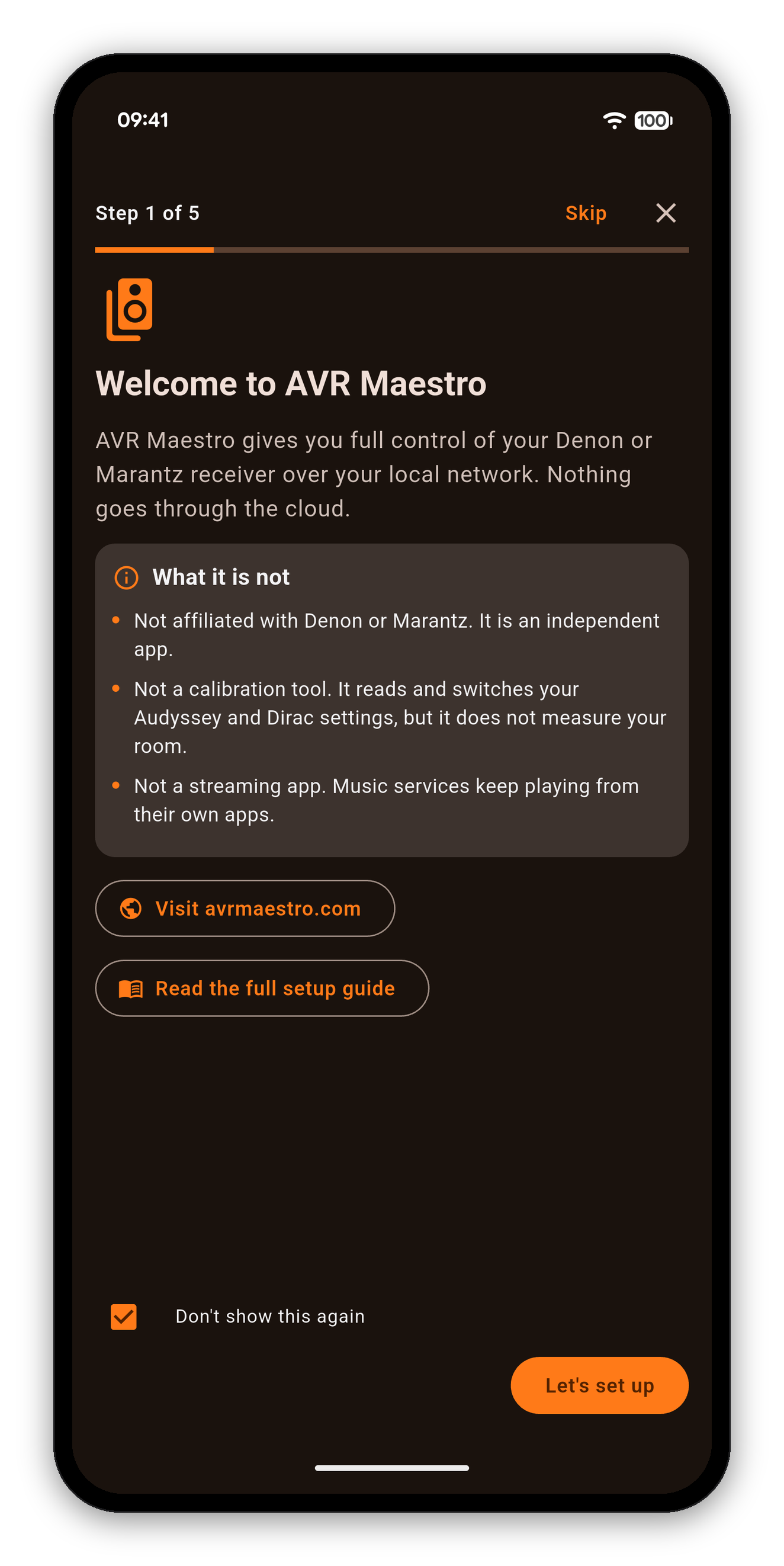
AVR Maestro is a premium network controller for Denon and Marantz AV receivers. It speaks their native protocols and surfaces the features the official apps bury - or skip entirely. No ads. No subscriptions. No data leaves your network.


Get it on Google Play Download on the App Store
One-tap Scenes Audyssey & Dirac Live Full speaker calibration Multi-zone FM/AM tuner No ads, ever
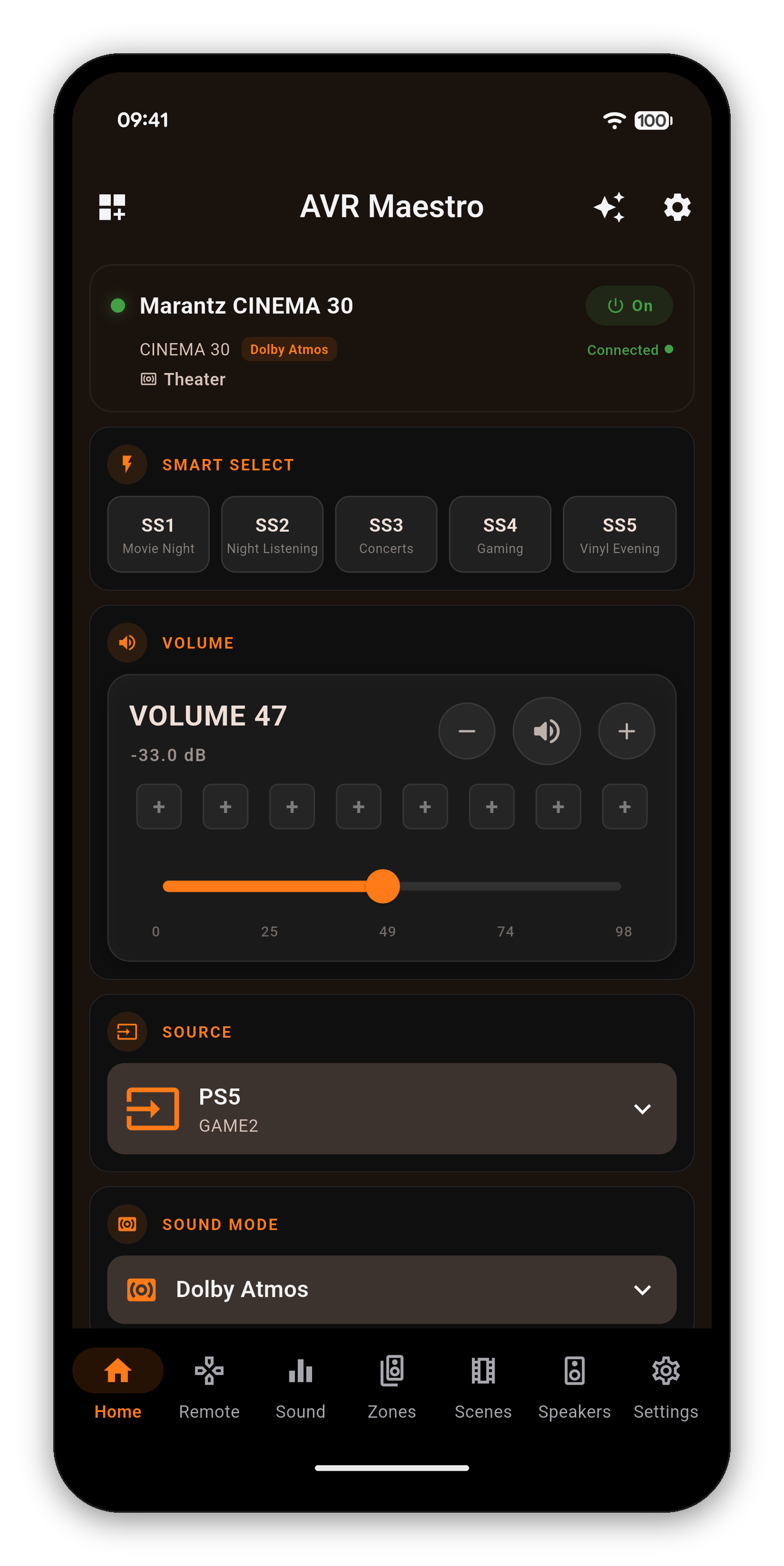
AVR Maestro dashboard
Why AVR Maestro

Everything your receiver can do, finally in one place.

Power, volume, inputs, surround modes, room correction, speaker setup, multi-zone audio, an FM/AM tuner and a live now-playing display - all over your local network, all in a clean, fast interface that adapts to exactly what your chassis supports.

Native protocol control

Talks to your receiver the way the receiver expects - reliable, instant, no cloud round-trips.

🧰

Chassis-aware

The app reads your model's capabilities and only shows what your receiver actually has. No dead buttons.

🔒

Private by design

No ads, no subscriptions, no tracking. Your setup and your data stay on your network.

Scenes listSave a Scene
The headline feature

Scenes: your whole setup, one tap.

Capture your receiver exactly how you like it and bring it back instantly - the killer feature no official app has.

  • Save almost everything: input, volume, sound mode, Audyssey / Dirac, speaker preset, channel & sub levels, tone, Zone 2/3, even the tuner station.
  • You choose what each Scene captures - the picker only shows what your receiver supports.
  • One-tap recall from the Scenes tab or a Home dashboard card. Save, update, rename, delete.
  • Mid-range friendly: recall is paced and ordered so it never overloads a slower receiver.
  • Your existing Channel Presets carry over automatically - nothing to re-save.
Sound modesDirac Live
Sound & surround

Tune the room, not just the volume.

A full DSP suite that mirrors your receiver's audio menu - and shows the live signal as it plays.

  • Every surround mode by genre - Movie, Music, Game, Pure - with the active mode shown live (Dolby Atmos, Auro-3D, DTS:X and more).
  • Audyssey MultEQ, Dynamic EQ / Volume, LFC and reference-level control.
  • Dirac Live slot selection - switch room-correction filters right from the app.
  • Dialog enhancer, tone, Restorer, Cinema EQ, Center Spread and the surround-shape upmixer parameters.
  • Tabs are model- and mode-aware: you only see what's actually available.
Speaker calibration

A dedicated Speakers workshop.

Layout, distances, levels, crossovers, subwoofer and speaker presets - the full setup suite, with each screen following the active Speaker Preset.

Smart about Dirac: the screens above are fully editable on a standard Speaker Preset. But when a Dirac Live filter is active on a preset, Dirac owns the layout, distances and crossovers - so instead of letting you push changes the receiver would silently reject, the app shows a clear lock and tells you exactly why (right). Switch to a non-Dirac preset to edit them.
A Dirac-locked speaker screen
Multi-zone
Multi-zone

Run the whole house.

Independent power, input and volume for Zone 2 and Zone 3 on multi-zone receivers - and Scenes can capture and restore zone state too.

Main remoteInputs
The remote

A real remote, plus the live picture.

Full D-pad and transport control with a live header showing the input, sound mode, and the actual channels in use.

  • Main Remote: power, navigation, options, info, plus a live IN/OUT channel map.
  • Inputs: a clean source grid you can rename and reorder to match your gear.
  • Quick / Smart Select recall and the system menu, one tap away.
Power features

The stuff most people never find.

AVR Maestro is deep. Here are the gems worth knowing about.

🎭

Scenes & volume presets

Save full-setup Scenes, and tap a volume preset chip to jump straight to a level you like.

🔄

Reorder & rename inputs

Make the source list yours - "Nvidia Shield", "Xbox", "PS5" - in the order you actually use them.

🎨

TJ Mode

Pick your own accent color and theme the whole app to taste, on top of light / dark / system.

🧮

Customizable dashboard

Add, remove and reorder Home cards so the dashboard shows exactly what you care about.

📋

Hide & reorder tabs

Customize Navigation and Customize Tabs let you trim the app down to the features you use.

📻

FM/AM tuner + presets

Tune by frequency or recall saved station presets, on receivers with a built-in tuner.

🎵

HEOS now-playing

Live track, artwork and transport controls for HEOS sources, right on the dashboard.

💾

Backup & restore

Export your receivers, Scenes and settings, and restore them on a new phone in seconds.

📱

Widgets & volume keys

Home-screen widgets and hardware volume-key control (Android) for the fastest possible access.

TJ Mode accent color
Customize tabs
Get started

Connected in under a minute.

Before you start

  • An iOS or Android device on the same Wi-Fi network as the receiver.
  • Receiver powered on with Network Standby enabled (Setup → General → Network → Network Control → On) so the app can wake it.
  • The receiver's IP address (Setup → General → Network → Information, or your router's device list).
  • Optional: enable Wake-on-LAN to power the receiver from cold standby.

Add your receiver

  1. Open the app and tap Add Receiver.
  2. Type the receiver's IP address and tap Test Connection - the app probes HTTP, Telnet and HEOS.
  3. Confirm the detected model and capabilities to save it.
  4. You're in. Switch or manage receivers any time from Settings → Devices.

Supported receivers

Networked Denon & Marantz receivers from 2014 onward:

Denon AVR

X-series networked AV receivers.

Denon AVC

AVC-A1H, AVC-X8500H and newer.

Marantz Cinema

Cinema 30, 40, 50 and up.

Marantz SR

SR5015, SR6015, SR7015 and newer.

Marantz AV

AV7706, AV8805, AV10 and newer.

Not sure?

It comes down to your network, not just the model. Confirm the receiver's web portal, the HEOS app and the official Denon/Marantz app can all reach it, and that its network ports aren't blocked. If those can talk to it, AVR Maestro should see it too.

User guide

How to use every screen.

The complete manual. Everything below adapts to your receiver - the app only shows controls your chassis actually exposes, so your screens may show fewer options than listed here.

Dashboard

Your at-a-glance home base. A device status card (model, connection, power) stays pinned at the top, with a customizable grid of widgets below it.

Customize it: tap the Customize Dashboard icon (top-left). In edit mode: drag a card to reorder, tap the red circle to remove it, Add opens a sheet of widgets you don't have yet, Reset restores defaults, Done exits. Cards are dimmed while editing so you can't change a receiver setting by accident.

WidgetWhat it does
VolumeSlider with dB readout, mute, and 8 saved volume presets.
SourceOpen the input picker; long-press tiles to reorder.
Sound ModeCurrent surround mode; tap for a grouped picker.
Now PlayingAlbum art, track info and transport for HEOS sources.
ZonesCompact Zone 2 / Zone 3 status + quick controls.
Quick SelectDenon Quick Select / Marantz Smart Select buttons.
Speaker PresetPreset 1 / 2 switcher (chassis-dependent).
Audyssey / DiracOne-glance calibration state + quick deep-link.
Channel / Sub LevelsPer-channel and subwoofer level snapshots with steppers.
ECO, Sleep, DRC, Restorer, Video, Room Size, LFEOne-tap toggles and pickers, each shown only when supported.

Widgets only render when your receiver exposes the feature.

Customize the dashboard

Scenes

Capture your receiver's state and recall it in one tap.

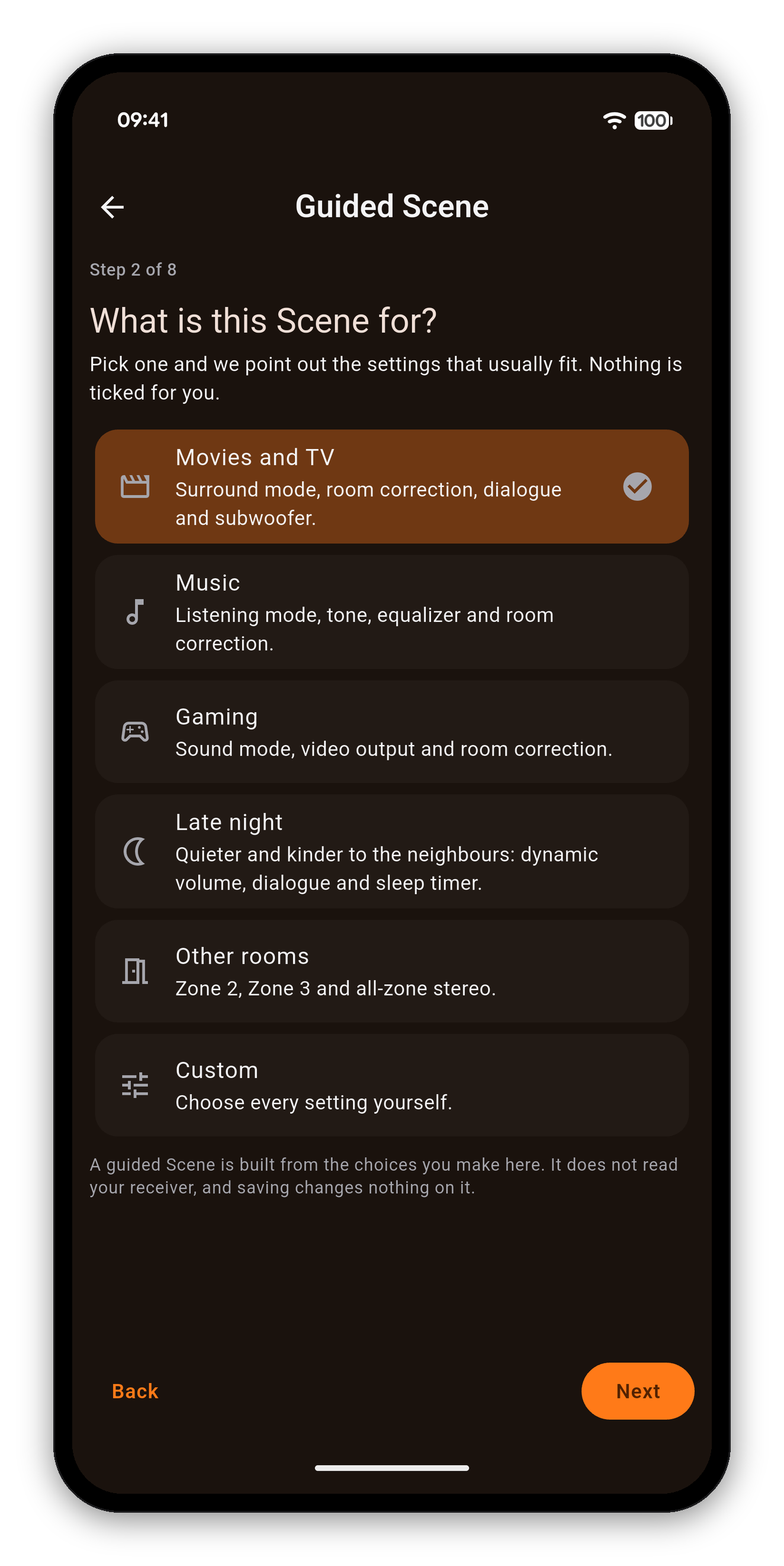
  1. Save: tap Save Scene, name it, and check which settings to capture. The picker is grouped (Routing & Volume, Sound, Audyssey & Dirac, Speakers & Levels, Zones, Other) and only shows what your receiver has.
  2. Recall: tap a Scene (here or on the Home dashboard card). Settings are applied in a safe order, one at a time, so even slower receivers never get overloaded.
  3. Manage: long-press a Scene for Apply, Update with current settings, Rename, or Delete.

A Scene can capture input, master volume, sound mode, Audyssey (MultEQ / Dynamic EQ / Dynamic Volume / LFC), Dirac slot, speaker preset, channel & subwoofer levels, tone, Cinema EQ, center spread/level, Eco, sleep timer, dimmer, HDMI audio out, speaker virtualizer, Zone 2/3, and the tuner station. Recall replays only the settings you captured.

Save a Scene

Sound

A model- and mode-aware DSP suite. Tabs appear only when your receiver supports them; some (like Shape) slide in based on the active surround mode.

  • Surround: pick a mode (grouped Movie / Music / Game / Pure) and toggle Audio Feature pills. Pills are three-state - lit (on, tap to turn off), subtle (off, tap to turn on), or N/A (greyed with a (?) explaining why the current mode/format doesn't support it).
  • Audyssey: MultEQ (Reference / Bypass L+R / Flat / Off), Dynamic EQ, Dynamic Volume, Reference Level Offset, and LFC with a containment stepper.
  • Dirac Live: pick a filter slot by its name (from your Dirac software). Empty slots are hidden; the active slot updates live if you change it elsewhere.
  • Dialog & DRC, Channels, Tone, Shape, IMAX, Auro-3D: dialog level + dynamic range, per-channel trims with Bass Sync, bass/treble, the upmixer parameters, and the immersive-format controls - each where your chassis exposes it.
Audyssey and Dirac Live are detected per speaker preset and are mutually exclusive - when one is active the other shows "N/A while X is active." Switch speaker presets to swap which calibration is in control.
Sound modes

Speakers

The full speaker-setup suite, read live from the receiver. Every screen follows the active Speaker Preset.

  • Speaker Layout: amp assignment and per-speaker Spkr / Pre-out config.
  • Distances: per-speaker distance from your seat, in the receiver's units (m or ft).
  • Levels: per-speaker trim level.
  • Crossovers: the frequency below which bass routes to the sub (only "small" speakers appear; "large" run full-range).
  • Subwoofer: subwoofer output settings.
  • Preset: switch between Speaker Preset 1 / 2 - each stores its own layout, distances, levels, crossovers and calibration.
When a Dirac Live filter is active on a Speaker Preset, Dirac owns the layout and distances - the app shows a clear lock instead of letting you push edits the receiver would reject. Switch to a non-Dirac preset to edit them.
Speaker Layout

Zones

Independent control of Zone 2 and Zone 3 on multi-zone receivers.

Each zone gets its own power, volume, mute, input and quick-volume presets, fully separate from the main zone. Zone state syncs live - change a zone from the receiver's panel or remote and the app updates within a second. When a zone is on, its card also shows the live HEOS now-playing stream for that zone with transport controls.

Zones

Remote

Four pages - swipe or tap the page tabs.

  • Main Remote: command bar (Power / Info / Setup / Option / Back), D-pad, transport, and a volume bar - with a live header showing the input, sound mode, and the IN/OUT channels in use.
  • Inputs: the full source grid. To rename or reorder, open the Source widget on the Dashboard, long-press a tile to enter edit mode, drag to reorder, and tap Done. The order saves per-receiver everywhere.
  • Quick / Smart Select: tap a slot to recall the receiver's saved scene; long-press to Rename it or Save current state (a wizard lets you pick exactly which settings the slot captures).
  • System: direct receiver controls - HDMI output, dimmer / illumination, triggers, ECO, auto standby, sleep timer, CEC, HDMI audio out, speaker preset, picture/video mode, all-zone stereo, auto lip sync, audio delay, input mode. Anything unsupported is hidden.
Inputs

Radio (FM/AM tuner)

On receivers with a built-in tuner. The station card shows the live band, frequency and active preset, and follows the receiver in real time.

  • Band: FM / AM. Tune mode: Auto (scan to the next strong station) or Manual (step by the band increment).
  • Tune: the two Tune buttons step the dial; Enter frequency opens a keypad to jump straight to a station (needs Manual mode).
  • Presets: a grid of preset slots plus up/down steppers. Long-press a slot to Save current station, Add / Rename label ("Jazz 88", "NPR"), or Clear label.

If the Radio tab is hidden, re-add it from Settings → Customize Navigation (it only appears when your receiver exposes a tuner).

Radio / FM-AM tuner

Settings

Everything that tailors the app to you and your gear.

SectionWhat's in it
DevicesSwitch receivers, full Device Information, Manage Receivers (rename/delete), Add Receiver.
AppearanceTheme (Light / Dark / Device / TJ Mode - pick any accent color and the app rebuilds its palette), Display Size, Widget Size, Customize Navigation, Customize Tabs.
AudioVolume Step (0.5-2.0 dB) and whether the absolute volume or dB shows on top.
HelpExplanation cards toggle, restore dismissed cards, and a live Debug Log with one-tap Save & Share for support.
Developer ToolsHidden until you long-press the version number - raw Telnet / HEOS commands, AJAX dump, and a volume-cap wire diagnostic.
BackupExport every receiver, preset and preference to a JSON file; import to restore.
AppAbout, website, Discord, Facebook, privacy, terms, licenses.
TJ Mode accent color

Now Playing & HEOS

When the active source exposes metadata, the Dashboard's Now Playing card shows album art, track / artist / station info and transport (play / pause / next / previous).

To browse music - stations, queues, streaming services, HEOS rooms - tap Launch HEOS on the Now Playing card. AVR Maestro opens the official HEOS app for browsing; once playback starts there, AVR Maestro takes back over the now-playing display, transport and widgets. Analog, optical/coaxial and HDMI passthrough sources don't report metadata, so the card stays empty for those.

Android extras & backup

  • Hardware volume keys: while AVR Maestro is in the foreground, your phone's volume keys control the receiver's volume (using your Volume Step setting). Foreground-only; iOS doesn't allow this.
  • Home-screen widgets: Quick Control (power / volume / mute / source), Now Playing, and Status - all resizable, tap-only, and auto-refreshing. Android only.
  • Backup & Restore: export every receiver, preset and preference to a JSON file and restore it on a new phone. The file holds no credentials or personal data beyond receiver IPs and your own preset names - safe to share.
Help

Troubleshooting.

"Test Connection" fails
Make sure the phone and receiver are on the same Wi-Fi network and subnet (mesh systems, guest networks and IoT VLANs can isolate devices). On the receiver, Setup → Network → Network Control must be On. Re-check the IP against the receiver's own Network → Information screen - DHCP addresses change. HTTP is required; Telnet and HEOS are nice-to-have.
Connection drops every few seconds
Receiver Telnet ports get sticky after long uptimes - power-cycle the receiver from the wall to clear the listener. On Wi-Fi 6 mesh, force the phone to the same band as the receiver (AVRs usually sit on 2.4 GHz; phones prefer 5 GHz).
Volume readout looks wrong
Receivers report volume as absolute (0-98) or relative (-80 to +18 dB). The app handles both; if you recently changed the receiver's volume-display setting, restart the app so it re-reads the scale. You can flip which value shows on top in Settings → Audio.
Sound modes or feature pills are greyed out / "N/A"
Surround modes and features are gated by the input's audio format and the active sound mode - a 2-channel source won't enable Dolby Atmos. That's the receiver's behavior, not the app's. Tap the (?) next to an N/A pill for the exact requirement.
Some Sound or Speaker tabs are missing
Tabs are model- and mode-aware. Audyssey, Dirac Live, IMAX, Auro-3D, Surround Shape, Distances and Crossovers only appear on receivers that expose them. Check Settings → Devices → Device Information to see what the app detected - or re-add a hidden tab from Settings → Customize Tabs / Customize Navigation.
The Radio tab isn't showing
Radio is capability-gated: it only appears on receivers with a built-in FM/AM tuner. If yours has one but the tab is hidden, confirm the tuner appears as an input on the receiver, reconnect in the app, or re-enable it from Settings → Customize Navigation.
Now Playing card is blank
The current input doesn't expose metadata - analog, optical/coaxial and most HDMI passthrough sources don't report track data. For HEOS sources, tap Launch HEOS to start playback, then return and the metadata populates.
Older firmware note: on some pre-2025 receivers (X4500H / X6700H / S960H / X4700H class), the receiver can't serve the Speaker Layout or Subwoofer Output screens to the app, so those open in the receiver's own web control with one tap. Everything else works normally.

Ready to take control?

Free, no ads, no subscriptions. Download it and connect to your receiver in under a minute.

Get it on Google Play Download on the App Store

Report a bug or request a feature